
Record a Presentation with Slides and Webcam

While there are many methods for recording presentations, you can use the following instructions for most lectures and student assignments.

Below are two commonly used options: Zoom and PowerPoint.
·  To sign up for a free Zoom account (the free version is fine), please go to zoom.us/signup
·  You can install PowerPoint for free as part of the CIIS community by signing in to  office.com (the credentials will be the same as your CIIS email and password). Then select the Install Office button near the top right. For instructions, see the Microsoft guide on installing Microsoft (Office) 365 or contact CIIS IT at support@uswired.com.

Option 1: Use Zoom to screen share and record your slides.

· Zoom account (the free version is fine).
· Installed Zoom app
· (optional) To enable captions in your Zoom account, see this Zoom Help Center article: Closed captioning and live transcription
Screenshare & record in Zoom.For a larger view in a new tab, click the link below:
Record Zoom with Slides and Webcam

Option 2: Use PowerPoint to record your slide presentation. Save it as a movie file.

· The installed  version of PowerPoint (not the web version).
· PowerPoint slides.
Record presentation in PowerPoint and save it as an Mp4 file.

For a larger view in a new tab, click the link below: 
Record a PPT with webcam as MP4
If you are using a Mac and experience issues with saving the file as an Mp4 using the instructions above, first confirm that you are using the desktop (not online) version of PowerPoint.
Then:
1.       Go to File Export.
2.       In the window that opens, select where to save the file.
3.       In the File Format field, select MP4.
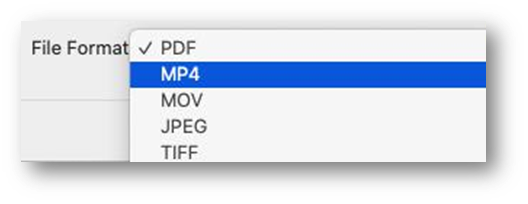
Mp4 selected in the File Format field.4.       Select Export.

Virtualized Courses

  • Your course is listed as having virtualized meetings.  This is a course that has live meetings via Zoom and an attendance requirement.
  • Teachers and students of courses with virtualized meetings will receive a webinar link via email to your CIIS account approximately 15 minutes before each class meeting. Your Liaison will join you at the beginning of the webinar to help with any troubleshooting. They will leave Online Learning’s chat support address (www.VCLhub.com) for you before exiting.
  • No action is required on your part to receive a webinar link.  It will be auto-scheduled by the Online Learning department for all virtualized meetings listed by the Registrar’s office. Please contact Online Learning (onlinelearningsupport@ciis.edu) if you do NOT wish to receive links for your class.
  • If you believe that your course is not virtualized (either because it is strictly an online course, it is meeting solely in person, or for some other reason), please notify your PCPM and let us know immediately.
  • Recording of virtualized courses is not permitted, due to FERPA, HIPAA, and other regulations.  It is possible to record a lecture-only portion of a virtual course meeting (parts of the meeting that do not include any student identity information – name, voice, video, etc.). This requires muting and turning off video for all students and starting and stopping recording during the lecture. 

How can I prepare for my virtualized course?

  • Please make sure you can access your CIIS email account directly. Do not have emails forwarded to a personal account (email forwarding has been disabled and you will not receive your link). 
  • Please see our What to Expect support article for instructions on stopping email forwarding, as well as other technical guidance and tests you can perform.
  • Please check your CIIS email account ~15 minutes before each class meeting for the webinar link.

How can I change my schedule?

Please ensure your syllabus matches the schedule in Self-Service. The Online Learning department will pull the schedule from Self-Service two weeks before the start of the semester to send webinar links for relevant courses.

If you must change meeting details (e.g. date/time, modality, etc.) please advise your PCPM to update Self-Service as soon as possible. Please send an email to onlinelearningsupport@ciis.edu if the changes are for course meeting that occur within the next week.

Rubrics Workshop with Dr. Anne Huffman

Topics covered include:

  • Matching the assessment to the assignment
  • Using VALUES rubrics or creating your own
  • How to partner with the students to build the skills needed for the assignment
  • Using Bloom’s Taxonomy in rubric building