
While there are many methods for recording presentations, you can use the following instructions for most lectures and student assignments.
Below are two commonly used options: Zoom and PowerPoint.
· To sign up for a free Zoom account (the free version is fine), please go to zoom.us/signup.
· You can install PowerPoint for free as part of the CIIS community by signing in to office.com (the credentials will be the same as your CIIS email and password). Then select the Install Office button near the top right. For instructions, see the Microsoft guide on installing Microsoft (Office) 365 or contact CIIS IT at support@uswired.com.
Option 1: Use Zoom to screen share and record your slides.
| · Zoom account (the free version is fine). · Installed Zoom app · (optional) To enable captions in your Zoom account, see this Zoom Help Center article: Closed captioning and live transcription | Screenshare & record in Zoom.For a larger view in a new tab, click the link below: Record Zoom with Slides and Webcam |
Option 2: Use PowerPoint to record your slide presentation. Save it as a movie file.
| · The installed version of PowerPoint (not the web version). · PowerPoint slides. | Record presentation in PowerPoint and save it as an Mp4 file. For a larger view in a new tab, click the link below: Record a PPT with webcam as MP4 If you are using a Mac and experience issues with saving the file as an Mp4 using the instructions above, first confirm that you are using the desktop (not online) version of PowerPoint. Then: 1. Go to File > Export. 2. In the window that opens, select where to save the file. 3. In the File Format field, select MP4. 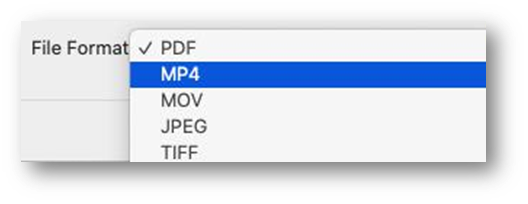 4. Select Export. 4. Select Export. |